Changelog
Admins can now choose the HubSpot property Data Parrot uses as its default deal value. The selection applies across reports, forecasts, and analysis. Pipeline Time Machine also shows when historical values need to update after a change.
TL;DR
- Choose the default deal value property in Settings.
- Keep separate Amount choices in saved forecast views.
- See a notice in Pipeline Time Machine while historical values await an update or rebuild.
Choose the default deal value
Open Settings > Workspace > Deal value. Select a property under HubSpot deal property, then click Save.
Available properties include Amount, Amount in company currency, and eligible custom numeric deal properties classified as amount fields.
Saving changes the default selection in Data Parrot. It does not change property values in HubSpot or trigger a bulk recalculation of deal analysis.
Keep separate Amount choices in forecasts
The Amount controls in AI Forecast and Forecast Workspace remain available. You can choose a different amount property for an individual forecast view.
An explicit choice in a saved view stays separate from the default selected in Settings. Changing the default does not replace that saved choice.
See when historical values are updating
After the default property changes, Pipeline Time Machine displays a notice when historical values are awaiting an update or rebuilding. Historical totals may be incomplete until the update finishes.
Where to find it
Open Workspace Settings to choose the default deal value property. Only admins can change this setting.
Use the Amount controls in AI Forecast and Forecast Workspace for per-view choices. Historical update notices appear in Pipeline Time Machine.
Sep 24, 2026
Activity Dashboard now saves which detail tables you show and which columns appear in Deals. Your choices remain after you reload the dashboard.
Use Add Table to show a hidden Engagements, Deals, or Leads table. Remove table hides a table, and you can show it again through Add Table. In Deals, use Columns to choose its visible columns. Make these changes in the Activity Dashboard.
Sep 22, 2026
Meeting and call transcripts are now available through the Data Parrot MCP Server. Use them in ChatGPT, Claude, Gemini and other compatible AI tools to review conversations recorded in Zoom, Fathom, or Aircall and stored in Data Parrot.
What changed
- Meeting and call results now indicate when transcripts are available.
- Transcripts can be retrieved for individual meetings and calls, with speaker labels and timestamps where available.
- Long transcripts are returned in sections so the full conversation can be retrieved.
Deal property history is now available in Deals and AI Forecast. You can review earlier values without leaving the deal table.
Review changes to deal properties
Numbered markers appear beside Owner, Amount, Close Date, Pipeline, Stage, and Forecast Status when a property has changed more than once. The number shows how many times the property has changed.
Select a marker to open the property's history. Each entry shows the saved value, when it changed, and the person or system responsible when that information is available. Amount, Close Date, and Stage changes also show the direction of the change.
History is on by default. Use the History switch in the table toolbar to turn the numbered markers off or back on. The help icon inside each history card also explains what the number means and where to turn History off.
In AI Forecast, property history appears when you open a group of current open deals. Won, Lost, Goals, and historical views are unchanged. Amount history appears when the table uses the default Amount option.
Where to find it
Open Deals or AI Forecast. Select any numbered marker beside a supported deal property to review its history.
Forecast Status classification and MCP support
Data Parrot now maps your team's Forecast Status values to standard meanings such as Commit, Most Likely and Best Case. Your existing names and deal assignments stay unchanged.
Owners and admins can see each classification and its explanation in Forecast Settings, and re-run classification when needed. Saving changes to status definitions updates the affected classifications.
Forecast Status is available through Data Parrot MCP 1.1.0. Connected AI assistants can include it in deal results, filter open deals and forecast totals by your team's values, and group deals by Forecast Status. This uses the status your team assigned, separately from Data Parrot's AI Forecast Category.
The Data Parrot plugin is now available for Cursor. Install it from the public GitHub repository, sign in to Data Parrot through your browser, and ask Cursor about forecasts, pipeline changes, deals, sales activity, customer health, and win/loss.
What the plugin adds
The plugin connects Cursor to the hosted Data Parrot MCP Server. There is no local MCP server or separate package to run. Data Parrot provides its sales analysis and supporting HubSpot information, and Cursor uses that information to answer your questions.
Revenue data access is read-only. The plugin cannot edit HubSpot or Data Parrot revenue records. You need a connected HubSpot account and Data Parrot Pro or Max.
Install the plugin
Follow the Cursor connection guide to install the plugin manually from the public GitHub repository, reload Cursor, and complete browser authentication.
You can now refresh Data Parrot's assessment of an open deal directly from the Deal View.
Select Refresh deal insights to pull in the latest deal details and activity from HubSpot. Data Parrot processes the calls, emails, meetings, notes, tasks, and other communications connected to the deal, then updates Deal Health, Status, Signals, Hygiene, Deal Summary, and the Timeline.
Follow the refresh as it runs
The progress window shows each part of the refresh. You can close the window and move to another deal while the update continues. The Deal View refreshes automatically when the new assessment is ready.
If information has changed in HubSpot or one of your other connected tools, such as Fathom, Zoom, or Aircall, since the last AI analysis, Data Parrot alerts you that the insights may be out of date. Select Refresh deal insights to update the assessment.
Where to find it
Open any active deal from Deals and select Refresh deal insights above Deal Summary.
Refresh deal insights is available on Data Parrot Pro and Max.
Forecast Notes are now available on the Deal page, and AI Forecast open-deal lists include the same deal editors used in Deals.
TL;DR
- Add, update, clear, and review Forecast Notes from an open Deal page.
- Edit Forecast Status, Next Step, Close Date, Pipeline, Stage, and Forecast Notes from AI Forecast open-deal lists.
- See refreshed deal information after saving changes across Deals, AI Forecast, and the Deal page.
Open Forecast Notes from a Deal page
Forecast Notes now appears in the footer of eligible open Deal pages. Open it to add or update your note, read notes from other people, or review version history.
Each person has one current note per deal and can edit only their own. Clearing a note keeps its previous versions in history.
The editor refreshes the current note when it opens. If a newer version exists, Data Parrot loads it before editing is available.
Edit open deals from AI Forecast
AI Forecast open-deal lists now include the same editors available in Deals:
- Forecast Status
- Next Step
- Close Date
- Pipeline
- Stage
- Forecast Notes
Won and lost deal lists remain read-only. Changes to HubSpot-owned fields save to the matching HubSpot deal.
See updated deal information across pages
After a successful save, Data Parrot refreshes related deal information across Deals, AI Forecast, and the Deal page. Pipeline and Stage changes also refresh active filtered lists so deals can move to the correct result and totals can update.
Where to find it
Open AI Forecast to edit deals from an open forecast selection. Open any eligible deal to use Forecast Notes from the Deal page.
These updates are available with Data Parrot Pro and Max when Forecast Notes is enabled. Owners and admins can manage Forecast Notes in Forecast Settings.
Deal Summary now gives you the quick hits from the activity behind each open deal.
At the top of the deal page, the AI summary pulls together emails, meetings, notes, and related deals. It shows what has happened, what is still unresolved, and whether the deal in HubSpot matches what the buyer is doing.
Deal Health and Status remain separate below the summary. The summary focuses on the activity behind the deal, while those fields show Data Parrot's current assessment of it.
Where to find it
Open any active deal from Deals. Deal Summary appears at the top of the deal page after Data Parrot analyzes the deal.
Next Step is now available as a column in deal views and on the Deal form. You can edit the HubSpot Next Step property in Data Parrot, and each saved change immediately updates the deal in HubSpot.
A smarter Next Step
Next Step also shows future scheduled activities for the deal, including calls, meetings, and tasks.
An activity indicator displays the number of scheduled activities. Select it to see each activity's available details, including its title, description, scheduled date and time, owner, and status.
The same scheduled activities appear below the editor when you update Next Step. The HubSpot Next Step text and scheduled activities remain separate, so editing the text does not change the scheduled activities.
Where to find it
Open Deals and use the Next Step column, or open a deal and find Next Step with the other editable HubSpot fields on the Deal form.
Next Step also appears for open deals in AI Forecast, where it is read-only.
Forecast Status and Forecast Notes are now available in Deals. You can also edit Close Date, Pipeline, and Stage directly, and turn on Accelerated Sync from page headers across Data Parrot.
TL;DR
- Set Forecast Status directly in Deals.
- Add Forecast Notes from reps and managers, with a full version history for each person.
- Edit Close Date, Pipeline, and Stage from the Deals table or Deal page.
- Turn on Accelerated Sync from the top of the page when you need recent HubSpot changes in Data Parrot.
Set Forecast Status in Deals
Forecast Status enables you to classify deals based on where they are in the sales process and how likely they are to convert.
Select Forecast Status on a deal and choose a value. The change saves immediately.
Owners and admins can choose how Forecast Status is managed:
- Use Data Parrot to manage Forecast Status values directly in Data Parrot, including their names, order, descriptions, and instructions for the team.
- Use a HubSpot property to use an existing HubSpot deal property for Forecast Status. Changes stay up to date in both HubSpot and Data Parrot.
Data Parrot and HubSpot keep their own Forecast Status setup. Switching between them does not copy or delete anything.
Add Forecast Notes to deals
Forecast Notes adds notes to deals for reps and managers. Each person has one current note per deal and can edit only their own. The team can read every note and its version history.
Select Forecast Notes on a deal to add or update your note, read notes from other people, or review earlier versions. Clearing a note keeps its previous versions in history.
Forecast Notes can be turned off without deleting existing notes or history. Turning them back on restores the saved notes.
Update deal fields directly
Close Date, Pipeline, and Stage can now be edited from the Deals table and the Deal page. Changes are saved to the matching HubSpot deal.
Pipeline and Stage are updated together. Only active pipelines and open stages are available.
Turn on Accelerated Sync from page headers
The Accelerated Sync toggle is now available at the top of pages across Data Parrot. Turn it on to check HubSpot for updates every five minutes for the next two hours. Standard sync runs every hour.
Accelerated Sync requires a connected HubSpot account. Owners and admins on Pro and Max can turn it on.
Where to find it
Open Deals to set Forecast Status, add Forecast Notes, or update Close Date, Pipeline, and Stage. Owners and admins can configure Forecast Status and Forecast Notes in Forecast Settings.
These updates are available with Data Parrot Pro and Max.
You can now sign in to Data Parrot with Google, Microsoft, or a sign-in code sent to your work email.
Use the work email already connected to Data Parrot
Whichever method you choose, use the same work email associated with your Data Parrot account. Your existing workspaces, settings, and data will still be there.
HubSpot is no longer a sign-in method
You no longer sign in to Data Parrot with HubSpot. This change only affects how you sign in. It does not disconnect your HubSpot integration or change how Data Parrot syncs HubSpot data.
Where to sign in
Go to Sign in to Data Parrot and choose Google, Microsoft, or your work email. If you use email, Data Parrot will send you a sign-in code.
If you have trouble signing in, email support@dataparrot.ai.
The Deal form now includes an About this account panel with the companies and contacts associated with the deal. If an associated company is a customer, Customer Health appears when available. Each contact shows their Engagement and Relationship signals.
See every contact on the deal
The About this account panel shows the contacts associated with the deal. For each contact, you can see their name, Engagement, Relationship, and most recent engagement. Their role and email also appear when available.
- Engagement shows how recently the contact has been active against the expected cadence. That cadence uses similar won deals when enough history is available.
- Relationship shows whether recent incoming emails, meetings, and connected calls look positive, mixed, or at risk. More recent interactions carry more weight.
This makes it easier to spot single-threaded deals, active stakeholders, and contacts who have gone quiet.
Focus the timeline on a contact
Select any contact to filter the timeline to that person's activity. You can select more than one contact or clear the selection to return to the full timeline.
When several contacts are selected, the timeline shows activity involving any of those people.
Customer Health
For customer deals, About this account also shows the company's Customer Health when it is available, including the health label, headline, and summary.
Customer Health applies to the company. It is separate from the Engagement and Relationship signals shown for each contact.
Timeline improvements
- The Contact column shows who was involved in each activity.
- Emails with attachments show the attachment count and link to the source email in HubSpot.
- Longer activity details are easier to read.
- The timeline remembers your column order, column widths, sorting, and column filters.
Where to find it
Open a deal from Deals, Win/Loss Pro, or Win/Loss Max.
Learn more in the Deals guide, Win/Loss Pro guide, or Win/Loss Max guide.
The Data Parrot MCP Server now gives you more complete, easier-to-review answers from your workspace data. Connect Claude, ChatGPT, Codex, or Grok and ask about your deals, pipeline, forecast, sales activity, Customer Health, and Win/Loss.
What changed
- Searches are more precise and can handle larger result sets without dropping the supporting details behind the answer.
- Forecast, Pipeline, Customer Health, and Win/Loss results make their supporting evidence clearer.
- The Data Parrot MCP Prompt Library has been expanded with more ready-to-copy questions for forecasting, pipeline analysis, deal reviews, sales coaching, activity, Customer Health, and Win/Loss.
- Connection and troubleshooting guides are updated for each supported AI assistant.
- Workspace admins can manage each user's MCP access in Settings → User Management.
Find your next question
Open the Data Parrot MCP Prompt Library to copy a question into your connected AI assistant. Use the prompts to investigate forecast risk, pipeline movement, deal health, sales activity, coaching opportunities, customer risk, or the reasons behind wins and losses.
Read the Data Parrot MCP Server overview or choose an AI tool to connect.
Deal timelines now include more activity: Open and closed deal timelines now show tasks and communications alongside the existing engagement and CRM history.
What changed
- Tasks and communications now appear alongside emails, calls, meetings, notes, and CRM property changes when that activity is available.
- Notes, tasks, and communications show clearer subjects, details, and status or channel labels. This includes readable note content, task statuses, and communication channels such as WhatsApp.
- Engagement colors now reflect activity impact across open and closed deal timelines. On open deals, CRM property changes also use directional colors to distinguish improvements, regressions, and neutral changes.
How to use it
Open a deal from Deals, Win/Loss Pro, or Win/Loss Max. Use the timeline to review engagement activity together with stage, amount, close date, owner, and deal health changes.
Read the Deals guide, the Win/Loss Pro guide, or the Win/Loss Max guide.
The Data Parrot MCP Server is now available for Pro and Max workspaces. Connect a compatible AI assistant to Data Parrot and ask questions about deals, pipeline movement, forecasts, qualifying HubSpot sales goals when available, sales activity, customer health, and win/loss evidence.
What changed
- Data Parrot now provides a remote Model Context Protocol server with OAuth sign-in.
- We have successfully connected the server to Codex, Claude.ai, Claude Desktop, Grok CLI, and Grok.com. Claude Code is also supported through its standard remote MCP setup.
- ChatGPT on the web works through Developer mode. Until an approved Data Parrot plugin is available, this setup is intended for advanced users.
- The assistant can use focused tools for open deals, deal timelines, activities, pipeline history, forecast evidence, qualifying HubSpot sales goals when available, customer health, win/loss, and data definitions.
- If a user belongs to more than one Data Parrot workspace, the assistant asks them to choose a workspace and keeps that selection tied to the client connection. Users can explicitly switch it later.
- Users who still need setup or workspace access receive the appropriate connect, create, request-access, or upgrade path.
- Starter workspaces receive an upgrade path instead of revenue data.
How to use it
Add the Data Parrot MCP Server URL to your AI client, complete the authorization flow, review the requested Data Parrot access, then enable Data Parrot for your conversation. Your AI client or workspace may require an owner or admin to add a custom connector.
Read the Data Parrot MCP Server overview or follow the connection guide.
Starter Briefs now focus on Deals to Check: Starter accounts now get a focused Briefs experience built around up to 3 open deals Data Parrot found likely to need attention.
Deals to Check highlights a small set of open deals based on recent deal activity, CRM changes, close-date risk, and deal health signals. Data Parrot selects deals from detected risk signals, then AI-analyzes them before they appear in the brief.
Starter accounts now use Daily and Weekly on the Briefs page. Daily shows the prepared Deals to Check list for the latest daily period, and Weekly shows the prepared list for the weekly period.
What changed
- Starter Briefs now show up to 3 open Deals to Check.
- Each deal can include deal details, deal health, current status, a summary, signals, and hygiene indicators.
- The at-risk read can include open deals that appear stuck or dormant, have close date risk, changed meaningfully, show engagement risk, or were previously identified by AI as stuck or concerning.
- If there are more risk-detected deals, Starter can show a count such as +X more at-risk deals and a short risk breakdown.
- If no open deals match the Deals to Check criteria, Starter shows an empty state for that period.
- Pro and Max continue to include broader Briefs analysis, full deal lists, expanded reasoning, and full AI Deal Signals.
- Pipeline and owner filters are available in Pro and remain disabled for Starter.
- Email, Slack, and the Starter Briefs page use the same Deals to Check source for the same period.
How to use it
Open Briefs from Data Parrot and use Daily or Weekly if you are on Starter. Review the surfaced Deals to Check first in HubSpot or with your team. Upgrade to unlock AI analysis across every deal.
Focus cards are now available on Deals: The Deals page now starts with focus cards for common open-deal reviews, including Best Deals, Hot Deals Going Quiet, Developing Deals, Close Date Risk, Get Back on Track, Trending Up, and Trending Down.
What changed
- Focus cards show the matching deal count and total amount for the current page filters.
- Selecting a card narrows the table to matching deals.
- Deals brings relevant columns forward for the selected card, such as health trend, deal health, reasoning, days to close, and age.
- The All card clears the selected focus card and returns to the full open-deal table for the current filters.
How to use it
Start with a focus card when you want a focused review path, then add filters for pipeline, owner, team, or timeframe when you need a narrower view.
Clearer deal pages for sales reviews: Open deals and Win/Loss Pro closed deals now have cleaner deal pages built for the way sales teams review pipeline, risk, and deal outcomes.
What changed
- Open deals now bring the deal summary, health, status, sales signals, hygiene checks, win/loss reasons, timeline, and suggested next steps into one review page.
- Win/Loss Pro deals now focus on the closed-deal headline, the primary win or loss reason, and the activity timeline behind the outcome.
- Both views are easier to scan when a manager or rep needs to understand what is happening in a deal before a forecast review, one-on-one, or post-sale discussion.
How to use it
Use the open deal page when you need the current deal readout: what is healthy, what is risky, what could help the deal win, and what still needs attention.
Use the Win/Loss Pro deal page when you want the plain-language story behind a won or lost deal and the activity trail that led to the outcome.
Win/Loss Max is now live: Win/Loss Max helps teams understand why deals are won and lost by finding repeated signals across closed HubSpot deals.
Data Parrot reviews the activity connected to each deal and groups the findings into categories such as Top Reasons, Sales Motions, Internal Assists, Internal Blockers, Pain Points, Compelling Events, Stakeholders, and Customer Friction.
What is included
- Automated signals for closed-won and closed-lost deals
- Won and Lost views, with filters for date range, pipeline, owner, and supported custom properties
- Category views for Top Reasons, Sales Motions, internal assists or blockers, customer pain points, compelling events, stakeholders, and customer friction
- Signal ranking by deal count or deal amount
- Main driver and Influenced counts for each signal
- A deal table for reviewing the matching deals behind each signal
- Click-through from a signal row to the full Data Parrot deal review
Why it matters
Win/Loss Max gives revenue teams a better way to use closed-deal history. Instead of relying only on manually filled HubSpot fields, teams can review the signals Data Parrot found across real deal activity and use them for sales coaching, qualification, marketing, product feedback, forecast reviews, and enablement.
New Briefs layouts: Pick the format that fits how you read. Switch between Executive and Newspaper from the Briefs toolbar while keeping the same daily or weekly brief context.
What changed
- Executive: A fast read with the headline, deal movement, watchlist, closed deals, and activity in a focused page flow.
- Newspaper: A wider, scan-first layout with the lead story, metrics, open deal highlights, closed deals, and activity arranged side by side.
- Toolbar controls: Use the top toolbar to move between Yesterday and Last week, switch formats, and narrow the brief by pipeline or owner.
- Share with Team: Admins can share the current brief with existing Data Parrot users or HubSpot users from the Briefs header.
How to use it
Start with Executive when you want the quickest read on what changed. Use Newspaper when you want more of the brief visible at once for review or discussion. Your selected format stays in place while you work, so you can move between filters without having to reselect the layout.
Use Share with Team when another user should review the same brief context from Data Parrot.
May 2, 2026
Activity Dashboard polish: Focusing a single salesperson now preserves the heatmap shading so individual activity stays just as readable as the team view.
May 1, 2026
Faster AI Forecast: AI Forecast now opens noticeably faster, especially for teams with larger pipelines.
Apr 29, 2026
Cleaner Briefs: If your team doesn't track leads, the Leads card no longer appears in your daily brief. One less empty panel to scan past.
Apr 17, 2026
Under-the-hood polish: Two quiet improvements this week to keep your most-used views humming.
- Win-Loss Pro: Filtering deals by team is now more resilient on larger teams.
- Activity Dashboard: Toggling the heatmap view stays smooth even when you have the dashboard open in multiple tabs at once.
Apr 15, 2026
Aircall integration: Connect your Aircall workspace to Data Parrot and we'll pull call recordings and AI Assist transcripts into your deal analysis automatically. Requires the Aircall AI Assist or AI Assist Pro add-on. Connect it from Settings → Integrations, or see the Aircall integration guide for setup details.
Apr 5, 2026
AI quality improvement: We've made a significant upgrade to how our AI analyzes your deals. Expect sharper deal health scoring, more accurate win/loss analysis, better notification insights, and deeper research trends across the board.
Mar 31, 2026
Meeting transcripts: View meeting transcripts directly in the deal timeline. Click "View Transcript" next to any meeting to read the full transcript without leaving the deal view.
Mar 23, 2026
Deal health trend: Open deals now show a health trend column comparing the current AI health score to the prior snapshot. See at a glance which deals are improving and which are declining.
Activity Dashboard is now live: The Activity Dashboard is now available for Pro and Max teams. It gives you one operating view of rep activity across calls, meetings, emails, deals, and leads, without bouncing between CRM reports, exports, and pivot tables.
You can review the whole team in one matrix, click into any number to see the records underneath, and shape the page around the views your team actually uses.
What is included
- Rep-by-rep activity matrix for calls, meetings, emails, deals, and leads
- Detail tables for engagements, deals, and leads, with drill-down from the dashboard
- Configurable time-series charts for the metrics you care about
- Daily, weekly, and monthly chart grouping, plus line, bar, and cumulative chart views
- Custom columns and stage-scoped activity breakdowns
- Drag, resize, and rearrange controls so each team can shape the layout around its review workflow
- Saved working state and backend-persisted layout, so the dashboard comes back the way you left it
- CSV export and action-ready links where they help you move from summary to follow-up faster
Why it matters
Most sales teams have the activity data already, but not a usable surface for reviewing it. The hard part is not collecting calls, meetings, and emails. The hard part is turning that activity into something a manager can scan in one pass, spot weak coverage, compare reps fairly, and drill into specifics without rebuilding the view every time.
That is what Activity Dashboard is built to do. It is a real operating surface for weekly reviews, coaching, and pipeline inspection, not another static report.
Today we have three major updates for AI Forecast:
- HubSpot Goals support is now built into AI Forecast
- AI Composer can generate suggested AI-powered forecast views
- Analyze with AI adds deeper forecast analysis and faster drill-down on what is driving changes
Create a forecast brief
Use Analyze with AI to create a brief that reveals strengths and weaknesses in your forecast.
- Summarize the current forecast context based on your timeframe and filters
- Highlight key upsides and risks
- Include confidence scoring with reasoning
- Recommend next steps
- Download to markdown or PDF
We built this to help teams save time and avoid missing the key issues when investigating forecast changes.
Generate forecast scenarios with AI
Use AI Composer to create forecast scenarios, or views, based on the data. Each view is built by the AI, including filters, time ranges, and even deal columns.
Examples include:
- New business deals not moving
- Expansion deals at risk of delays
- Best near-term deals
Support for HubSpot Goals
HubSpot Goals are now supported in AI Forecast. You can see which users have goals, compare goals against forecast, and click any goal in the worksheet to open the goal breakdown.
If you do not see goals, refresh your HubSpot connection from settings.
Customer Health trend indicators: Customer Health now shows trend arrows next to each account's health score, so you can see whether accounts are improving or declining over time.
AI Forecast streaming summaries: AI Forecast can now generate a summary of your forecast on demand. The summary streams in as it's generated and highlights risks, patterns, and notable changes in your pipeline.
AI Composer: Generate suggested forecast views using the new AI Composer. Describe what you want to see and Composer creates a saved view with the right filters and breakdowns.
Forecast target icons: AI Forecast shows goal target lines on the chart so you can see how your pipeline stacks up against targets at a glance.
HubSpot Goals support: HubSpot Goals are now built into AI Forecast. See which users have goals, compare goals vs forecast side by side, and click any goal in the Worksheet to see the underlying breakdown. If you don't see goals, refresh your HubSpot connection from settings.
Feb 12, 2026
AI spectrum filters: Filter deals by AI health, intent, and other scores using a visual spectrum slider instead of picking from a dropdown.
Amount-range slider: Filter deals by amount range directly in the filter bar.
Win/Loss deal detail: The single-deal view for won and lost deals has improved UI and expanded timeline.
Data Parrot v3: We rebuilt Data Parrot from the ground up. It is faster, more intuitive, and gives us a foundation to ship improvements multiple times per week.
What's new
- Daily and weekly Briefs are now available in-app
- AI Forecast has a major update with saved views and an interactive matrix
- Custom properties are available in columns and filters
- Tables now support add, remove, resize, and reorder actions
- Saved views persist, and your working state is remembered
Briefs in-app: The daily and weekly briefs are now available directly in the app. You can see key open deal movement, activity summaries, won and lost deals, and a Deal Wire that shows updates to your deals.
AI Forecast major update: AI Forecast has been rebuilt to make it easier to slice the forecast, save views, and drill into the deals behind the numbers.
- Generate suggested views with the new AI Composer
- Create and save as many views as you need
- Filters now include custom properties
- One-click access to time range and group-by, including quarter
- Top summaries update with your current breakdown
- The new interactive forecast matrix includes won and lost deals, and you can click any cell to see the underlying deals
Custom properties and table controls: Custom properties are now available as table columns and filter options across the app. You can add, remove, resize, and reorder columns, then come back to the same working state later.
28 themes: Choose from 28 built-in themes including light and dark mode. Change it any time from the sidebar.
Coming next
Three sections were not live yet in this release and were scheduled to ship over the next one to two days with major updates:
- Customer Health
- Win Loss Max
- Activity Dashboard
The previous app remains accessible from the left-side menu.
Feedback
If you hit an issue or want to share feedback, reply to the email update or use the help icon in the app. We were already working through a short list of known issues and shipping fixes over the next few days.
Data Parrot Wrapped 2025 is live: your second annual Wrapped is now available in the app.
Welcome to the second annual Data Parrot Wrapped, where we summarize the most important insights from your 2025 sales year. It gives your go-to-market team a fast year-in-review of what drove outcomes, what buyers asked for most, and who led key activity metrics.
Your Wrapped reveals:
- Your Pipeline Hero
- Key positive and negative trends that drive deal outcomes
- Top customer requests for your company
- The difference between your won and lost deals
- Your top performers in emails, calls, and meetings
This is built to help your team align quickly on what worked, what did not, and where to focus first as you start 2026.
Dec 29, 2025
Data Parrot Wrapped 2025: The second annual Data Parrot Wrapped is here. a year-end summary of the most interesting insights from your 2025 sales data. Find out who your Pipeline Hero is, what your top customer requests were, who spent the most time in meetings, and more.
Check out your Wrapped today at legacy.dataparrot.ai/Wrapped2025. You can revisit it any time from your Personal Settings.
Win Loss Plus now classifies every closed deal: A major update to Win Loss Plus that turns every Closed Won/Lost HubSpot deal into a clear, objective view of what drove the outcome, automatically grouping reasons so you can see the themes across all your wins and losses.
For every won and lost deal, Data Parrot runs a full breakdown and classifies:
- Sales Motions: what your reps did well vs. where they struggled (e.g., "Value Messaging," "Strong Product Storytelling" vs. "Poor Qualification," "Weak Discovery")
- Internal Assists and Blockers: where your company sped things up or slowed deals down (e.g., "Marketing Content Turnaround," "Executive Involvement" vs. "Delayed Legal Approvals," "Missing Technical Resources")
- Customer Context: the specific pain points (e.g., "Manual Reporting," "Unclear Pipeline Health"), compelling events (e.g., "Sales Plan Deadline," "New VP Sales Hire"), and stakeholders (e.g., "Technical Leader Influence," "Internal Champion") that drove the buying process
These are examples -- all of this is automatically personalized to your company, product, and customers.
Use cases: Coach reps with facts showing which motions win and which patterns lose. Ramp new reps faster with real data on how deals are won. Fix internal bottlenecks where legal, approvals, or missing resources hurt the sales team. Aim marketing at real buyer pain using actual pain points and compelling events from your wins. Run deal post-mortems turning every key deal into a clear storyline.
Detailed deal view: Click on any deal in the tables to see the detailed analysis. Each Sales Motion, Internal Blocker, Internal Assist, Compelling Event, Pain Point, and Stakeholder is shown with a score and a description of the impact on the deal, dynamically adapted based on the deal's specific details.
Pricing and access: Win Loss Plus is available now as a paid add-on and requires an annual Data Parrot Pro subscription. Once enabled, the AI will begin analyzing your historical deals immediately. Add Win Loss Plus | Learn About Win Loss Plus
Fathom integration (Beta): Connect your Fathom account to improve Data Parrot AI analysis for Deal Intelligence. Fathom integration is done at the user level, not org-wide -- each sales rep must connect their own Fathom account in Personal Settings. Historical deal re-evaluation may be available in the future -- contact us to request this. Read More About Fathom Integration →
Personal Settings page: A dedicated Personal Settings page gives each user control over their Data Parrot experience. Choose how Data Parrot sends updates with Daily Email/Slack (morning summary of deal changes and insights), Weekly Email/Slack (comprehensive weekly roundup), and the ability to filter notifications by Pipeline, Stage, and Deal Owner.
Simplified Settings for Admins: The overall settings section has been reorganized with clear tabs: Personal Settings (notification preferences and integrations), User Management (manage team members and permissions, admin only), Integrations (organization-wide integrations like HubSpot, admin only), and Subscription Details (billing and plan information, admin only). Go To Settings ↗
New Homepage: The Data Parrot Home Page puts everything together in a single, filterable, interactive dashboard with no scrolling required. Filter by Pipeline, Deal Owners, and Time Range to see exactly what you need.
The homepage includes four views:
- Pipeline Movement: what grew your pipeline (new deals, amount increased, re-opened deals) and what shrank it (closed deals, amount decreased)
- Team Activity: meetings (booked, held, rescheduled, scrapped), calls (connected, voicemails, failed attempts), emails (sent and received), deals (created, won, lost), and leads activity tracking
- Research Trends: positive trends worth pursuing, negative trends to watch, and top customer requests and feedback patterns
- Deal Movement: open deal changes with AI health score impact, won deals with AI summaries, and lost deals with AI analysis
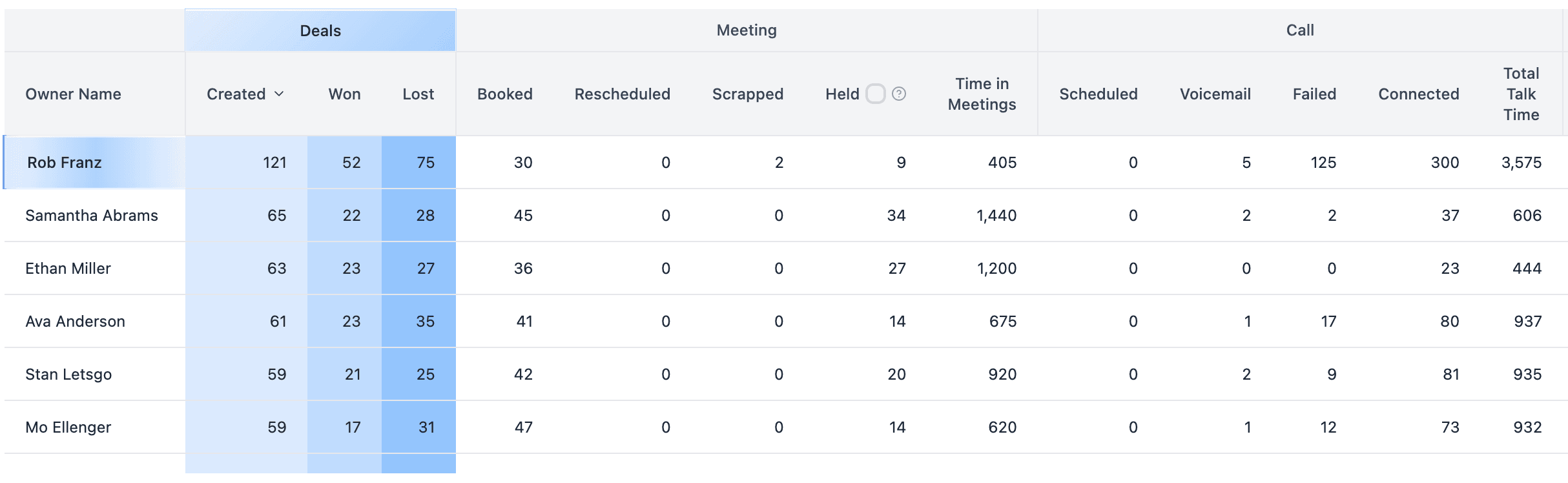
Updated notifications: The email and Slack notifications have been completely redesigned to be easier to read and more visual. They now include summary team activity with calls, meetings, and emails sent/received; deals created, won, or lost; and leads created, qualified, or disqualified (if you use leads). The Slack notifications are being updated to match this new design. Update your Notification Settings ↗
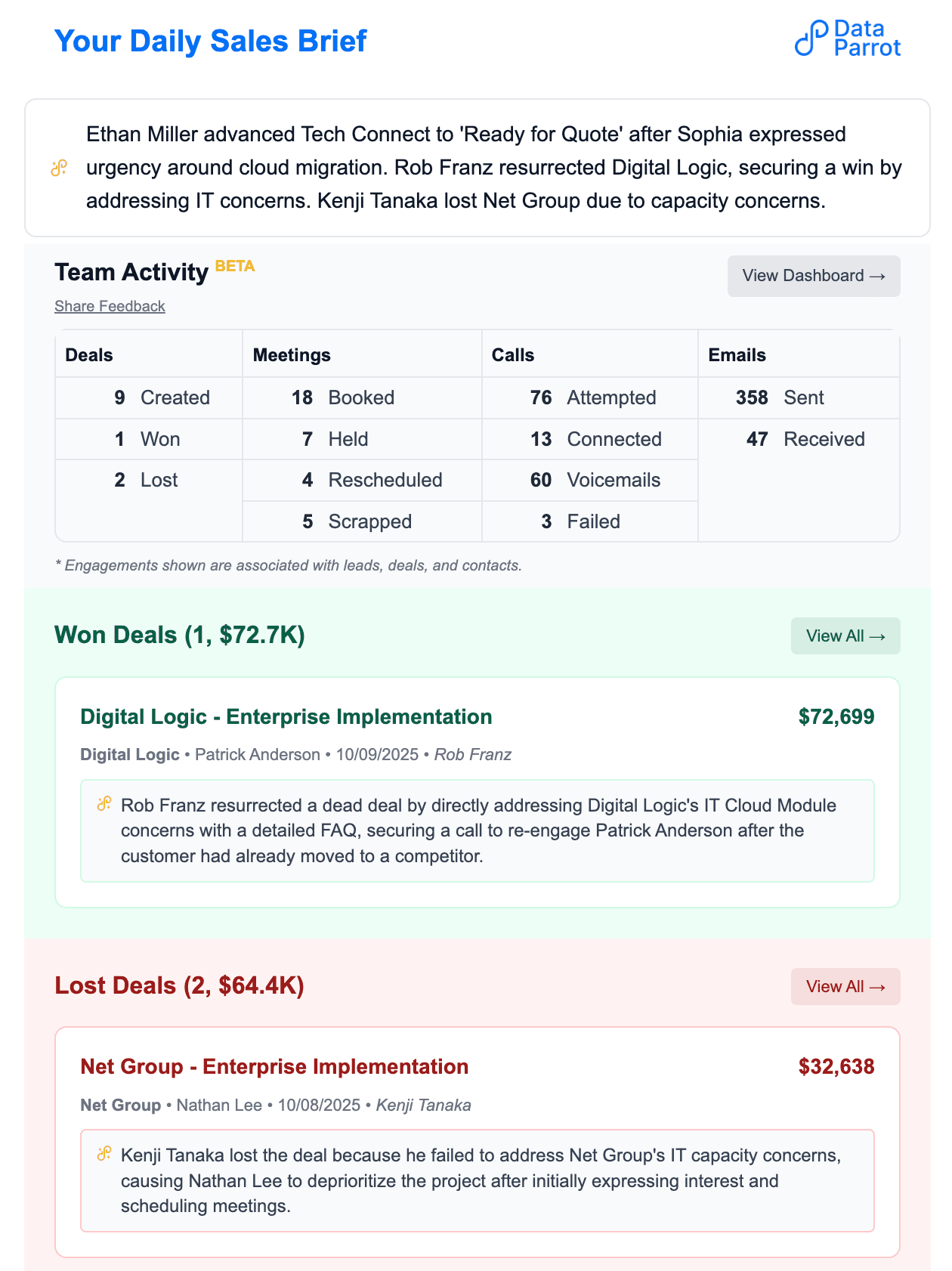
Activity Dashboard with leads and deals: The Activity Dashboard now includes Leads and Deals so you can see everything your team is doing in one place. View calls, meetings, emails, deals, and leads in a single table. Filter by date range, pipeline, sales team member, and association type. Sort by anything, filter out duplicate meetings with AI, interact with a chart showing data over time, and export to CSV. View Activity Dashboard ↗
HubSpot UI Extension now available for all users: Get AI-powered deal health directly inside HubSpot on deal records for open, won, and lost deals. With the extension you can get the real health of open deals with AI signals on status, purchase intent, and risk; see why deals were won or lost with outcome analysis; chat with your deals using built-in context from associated companies and contacts; and create tasks inline from AI suggestions.
How to add the cards: The Data Parrot AI cards can be added to both the main deal view and the right sidebar in HubSpot. In HubSpot, go to Settings, then Integrations, then Data Parrot, then App Cards. Select Manage Locations and choose where to place the cards -- the left box ("Data Parrot") adds it to the main panel, the right box ("Data Parrot Sidebar") adds it to the sidebar. You can also customize placement from Settings, Objects, Deals, Record Customization. Once added, users with Data Parrot access will see the Deal Health cards on the Deal Form.
Availability by plan:
| Data Parrot Version | Open Deal Analysis | Won/Lost Deal Analysis |
|---|---|---|
| Starter | Available (Credits) | Coming Soon (Credits) |
| Pro | Available | Available |
| Win Loss Review Plus Addon | Coming Soon |
For beta users: The beta app ("Data Parrot Private Beta") was shipped as a separate HubSpot app and can be safely disconnected once you migrate to the new cards. Go to Settings, Objects, Deals, Record Customization -- remove the old beta cards from your views, then add the new cards via Settings, Integrations, Data Parrot, App Cards. Contact us if you have any issues.
HubSpot UI Extension updates: The extension now dynamically calculates "Why We'll Win" and "Why We'll Lose" for real-time insights into deal strengths and risks. You can expand to see details for summary, signals, and hygiene metrics. General cleanup and design improvements have also been applied. To install, go to Settings - Integrations and select "Install Data Parrot Card," then add the cards to your deal view in HubSpot. Help Guide ↗
Chat with your deal in Data Parrot: You can now ask questions about your deal directly within Deal Pulse Mode or the Deal Form. The AI chatbot analyzes comprehensive deal context including primary deal data with custom properties and historical values, associated engagements and interaction patterns, associated companies and contacts, and deals and engagements associated to those companies and contacts. Chat with your Deal ↗
Win-Loss Plus improvements: The Win and Loss Reason categories have been standardized. Previously there could be overlap with similar reasons -- now the grouping is more natural, making it easier to identify patterns in why deals are won or lost. This enables better pattern recognition, training opportunities based on common objections, and data-driven decisions about product, pricing, and positioning. Win-Loss Plus is an Addon available for Annual customers. Go to Win-Loss Plus ↗
Improved HubSpot UI Card: The Data Parrot card in HubSpot has been updated with a more visual layout and scores that are easier to read. To install, go to Settings - Integrations in Data Parrot and select Install Data Parrot Card, then add the cards to your deal view in HubSpot (main panel, sidebar, or both). Help Guide ↗
Chat with your deal in HubSpot: You can now ask any question about a deal to Data Parrot right in HubSpot. The AI chatbot considers everything related to the deal including primary deal data with custom properties and historical values, associated engagements, associated companies and contacts, and deals and engagements associated to those companies and contacts. To enable, go to Settings - Integrations and select "Install Data Parrot Card" then "Enable Data Parrot AI Assistant." Help Guide ↗
Full screen deals in Data Parrot: Open any deal and get a single-screen view of everything going on with your deal, including Why We'll Win and Why We'll Lose. Go to Deal Pulse ↗
Improved Pipeline Time Machine: The Pipeline Time Machine filters have been reorganized for easier pipeline tracking. The flow is now: choose your grouping (day/week/month/quarter), pick your date range, then optionally compare to previous periods. Go to Pipeline Time Machine ↗
Real-time AI recalculation: If you update a deal, add engagements, or change associations, you no longer need to wait for the daily refresh. Click Recalculate and get fresh AI analysis within 5-15 seconds. Install the Data Parrot HubSpot Extension ↗
Right panel card: The Data Parrot card is now available on the right panel in your HubSpot deal form. By default it shows Deal Health, Deal Status, and AI Summary. Each user can individually configure which AI insights they want to see from the available options: Summary, Deal Health, Deal Status, Purchase Intent, Competitive Position, Sales Rep Performance, Stage Confidence, and Close Date Confidence.
How to install: In Data Parrot, go to Settings - Integrations and select "Install Data Parrot Card." In HubSpot, add the Data Parrot cards to your deal view.
Rate the AI insights: Rate the AI analysis with a simple thumbs up or thumbs down and provide optional detailed feedback to help improve the analysis.
HubSpot UI Extension Card: You can now add a dedicated Data Parrot card directly to your HubSpot deal view, bringing AI-powered insights right where you need them. Place the card on the Overview tab or in its own "Data Parrot" tab. See deal health, status, and key buying signals in one consolidated view. Create tasks from AI suggestions automatically linked to the deal. View won/lost reasons for closed deals. Access all insights without switching between platforms.
How to install: Go to Settings - Integrations in Data Parrot and select "Install Data Parrot Card," then add the Data Parrot card to your deal view in HubSpot. Follow the step-by-step guide ↗
Important notes: The card can only be placed in the center panel of a deal record. Only Data Parrot users will see the AI insights (all users can still see custom properties). Use HubSpot's team views to control who sees the card. Available for Data Parrot Pro accounts.
Activity Dashboard: A single-screen view into the activities of your sales team showing a summary table, a chart of engagements over time, and a list of engagements. Filter by date range, owner, and whether activity is tied to a deal or a lead. Sort any column including meetings booked, rescheduled, call connects, talk time, and email counts. Click Meetings, Calls, or Emails in the table header to filter the chart, click a rep's name to filter for that owner, group the chart by day/week/month, toggle to hide duplicate meetings, and internal emails are removed automatically. Go to Activity Dashboard↗ | Read More about the Activity Dashboard
Help overlay for Deal Pulse Mode: A new help overlay explains what each section of Deal Pulse Mode does. Click the question mark in the top right corner of the deal view to open it, hover over any section to learn more, and click close to dismiss. Read More about Deal Pulse Mode
New Deal Pulse Mode: Deal Pulse Mode has been redesigned to make pipeline reviews sharper, faster, and more actionable. AI now frames each deal with "Why We Will Win" and "Why We Will Lose," with a new layout placing deals on the left, core insight in the middle, and actions and history on the right. Timeline and Suggestions are shown side-by-side for full context, and everything fits on a single screen with no tabs or scrolling. Go to Deal Pulse↗ | Read More about Deal Pulse
Filter deals by engagements: A new way to filter deals based on real activity. Combine AI filters (like Customer Intent or Deal Health) with engagement filters (like email, meeting, or call history) to answer questions like: Which high-intent deals haven't had an email in 2 weeks? Which deals closing soon haven't had a discovery meeting? You can save favorite filters as presets. Top-level filters (Pipeline, Stage, Team, Owners) have been moved to the top so they follow you across sessions. Read More about Filtering Deals in Deal Pulse
New deal table view: The deal table now supports choosing and reordering columns, sorting by multiple fields (like Close Date and Stage), and expanding any row to see full deal details without leaving the table.
Notes in AI scoring: Notes are now considered for Deal Health Analysis with no extra work required.
Team Activity Dashboard: The dashboard now supports smart de-duplication of meetings -- if one tool books a meeting and another creates a second from the transcript, duplicates are detected and displayed clearly. You can also filter the dashboard by association to view activity by lead, deal, or all. Go to Team Activity ↗ | Read More about the Activity Dashboard
AI Forecast improvements: You can now see both deal count and amount at the same time, and filter your Forecast by deals with no Close Date to find deals that need to be tidied up. The visual layout is cleaner with improved legends and more readable chart ranges. Go to the AI Forecast ↗ | Read More about AI Forecast
New help pages: Several new pages have been added to the help site:
New interactive filters: Filters have been redesigned for speed and ease of use. Main filters (pipeline, stage, deal owners, teams) are now separated from Deal Pulse filters. All filters are entirely on-page for instant results, presets are separated into Main and Deal Pulse for maximum flexibility, and as you choose Deal Pulse filters the other options dynamically update to guide you. Read More about AI Forecast
ChatGPT for HubSpot: A custom GPT that doesn't just explain how to do something in HubSpot, but gives you multiple options so you can pick the right approach for your situation. Try the Free ChatGPT for HubSpot↗
User management updates: In Settings - User Management, you can now instantly revoke access to any user and set a default session duration before re-authentication is required. Manage your Users↗
Other updates: Sidebar is now smaller, filtering no longer shows non-sales pipelines, bug fixes with drop downs, and fixes with the Start Deal Pulse Mode filtering.
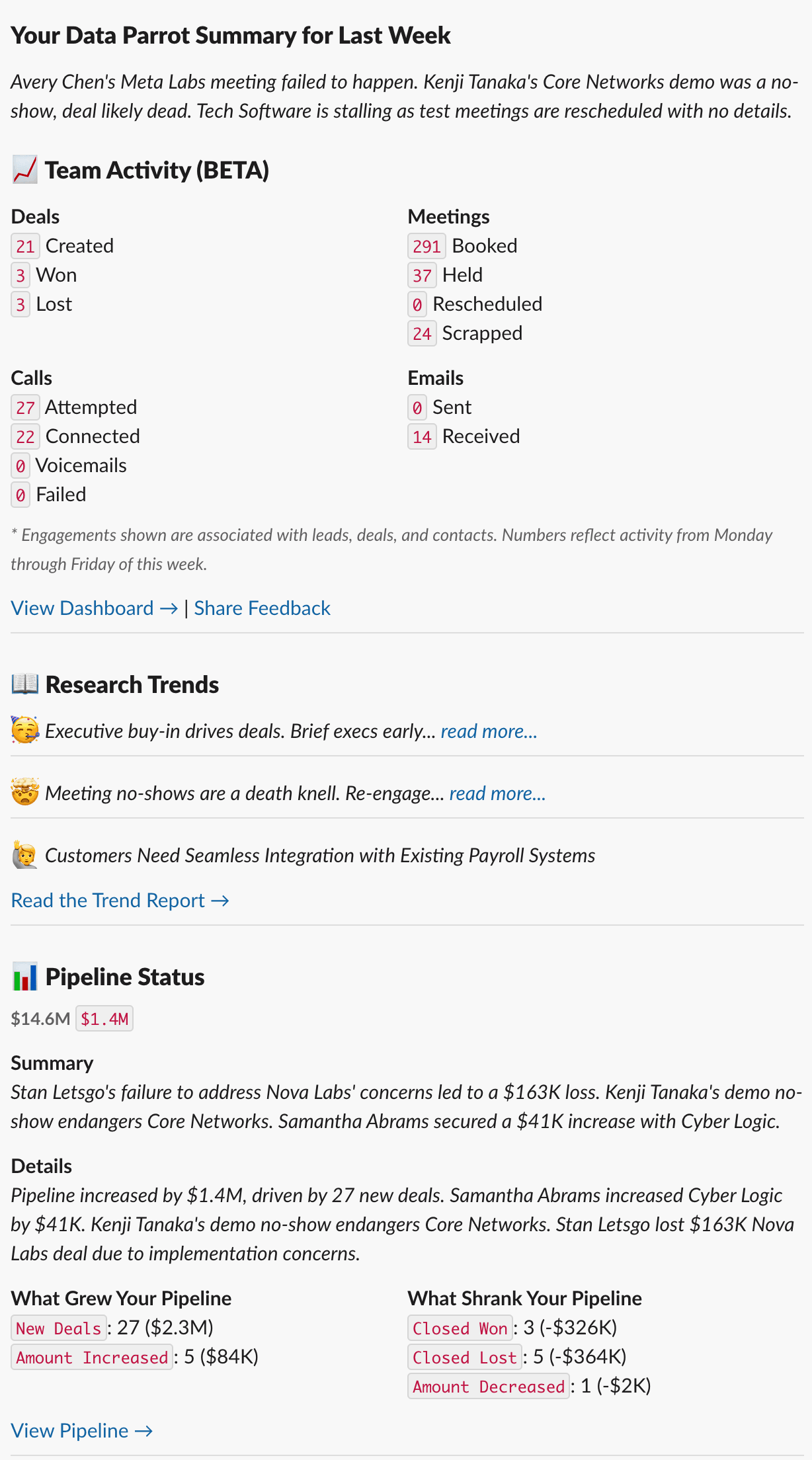
Slack integration: You can now receive daily and weekly notifications via Slack. Slack integration is available on all Data Parrot plans. Configure notification settings in Settings - User Management and connect Slack in Settings - Integrations. Read More about Slack Integration ↗
Win Loss Review Plus updates: Major updates to the Win Loss Plus add-on now analyze your deals to reveal Win/Loss Reasons, your performance (sales motions, internal blockers, internal assists), customer profile (pain points, compelling event, friction, key stakeholders), and an interactive Sales Cycle Timeline for running deal post-mortems. This analysis requires significant AI so it is an optional add-on; Data Parrot Pro customers have access to the standard Win Loss Review. Learn more about Win Loss Review Plus ↗
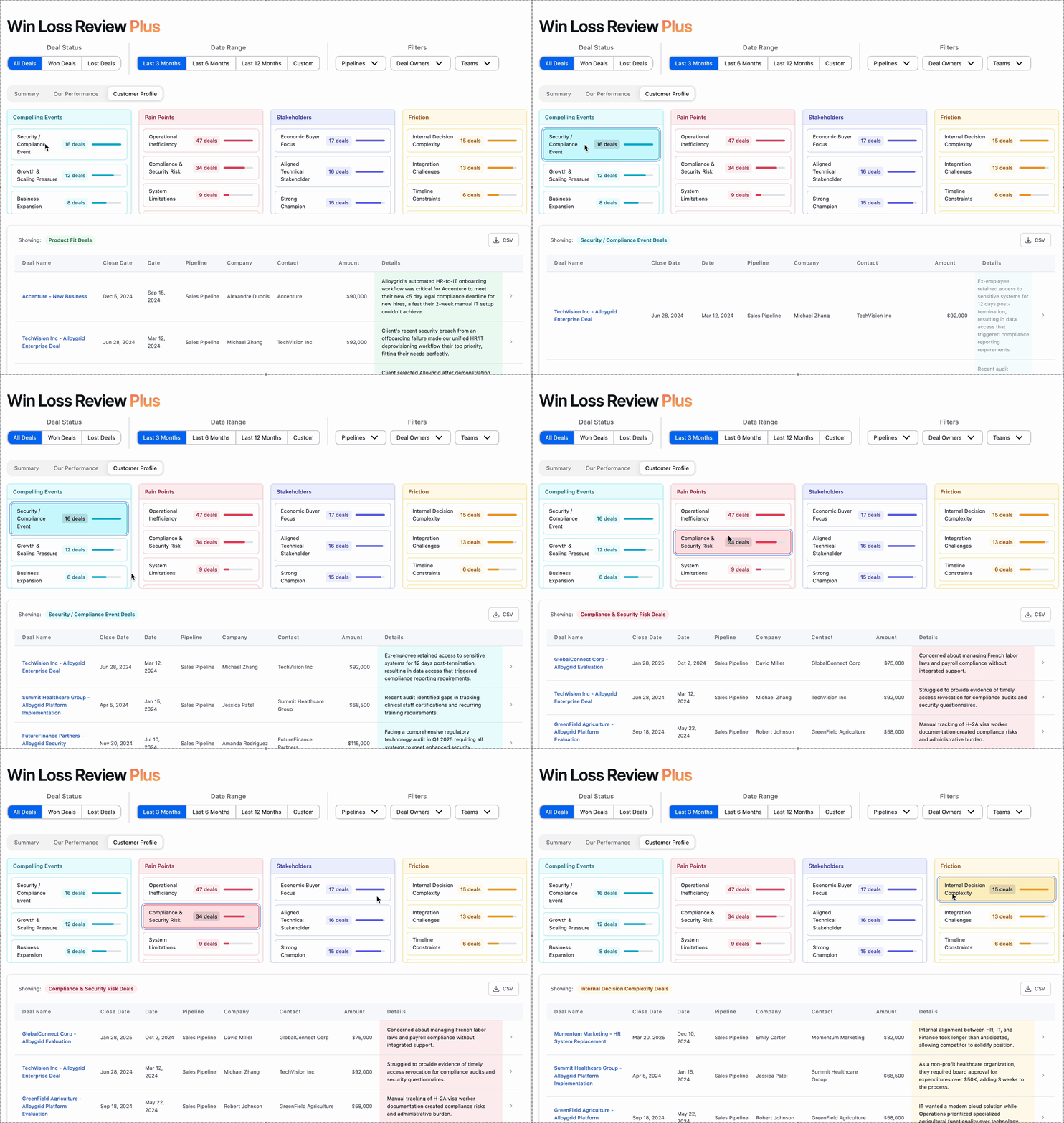
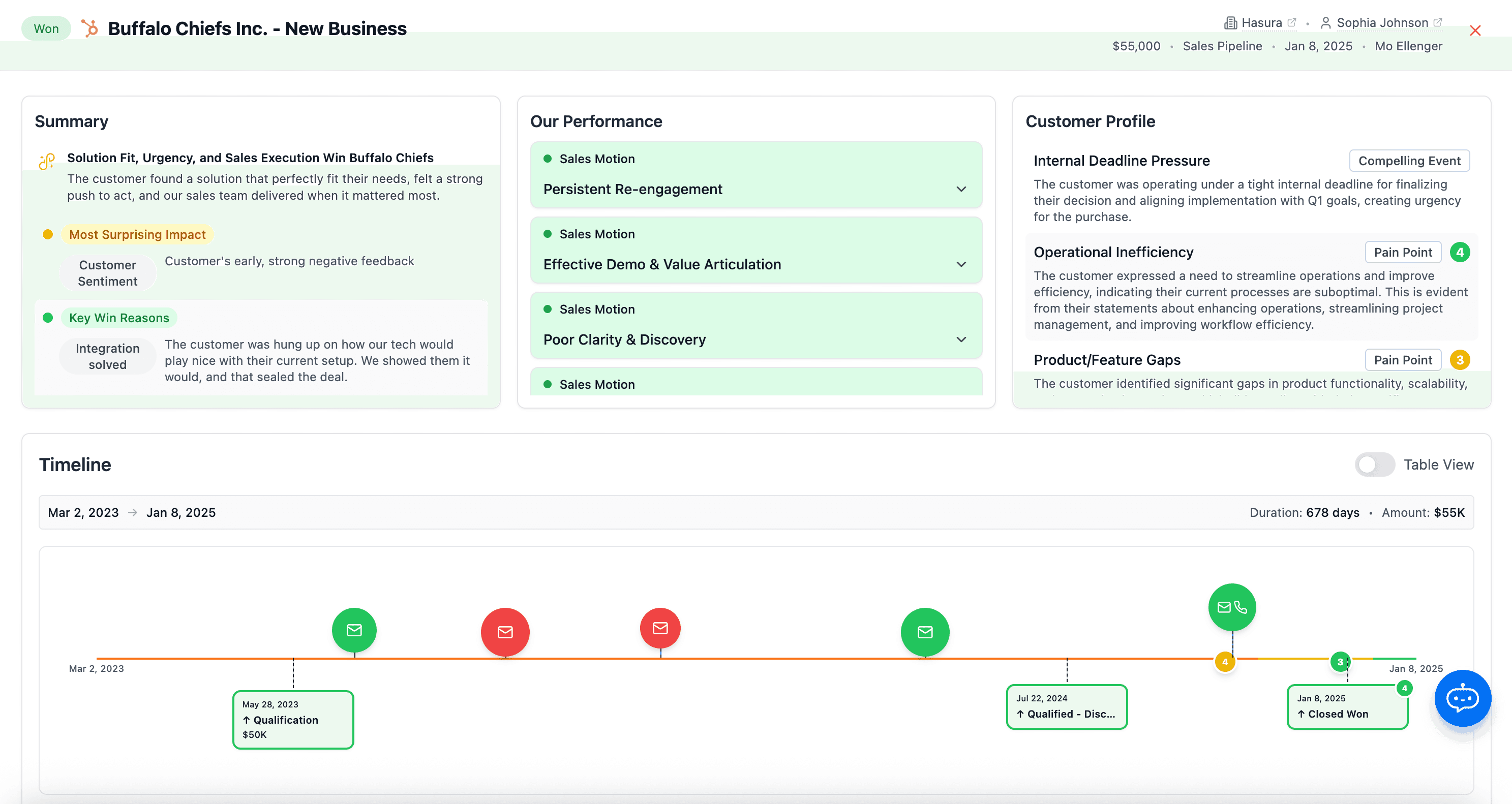
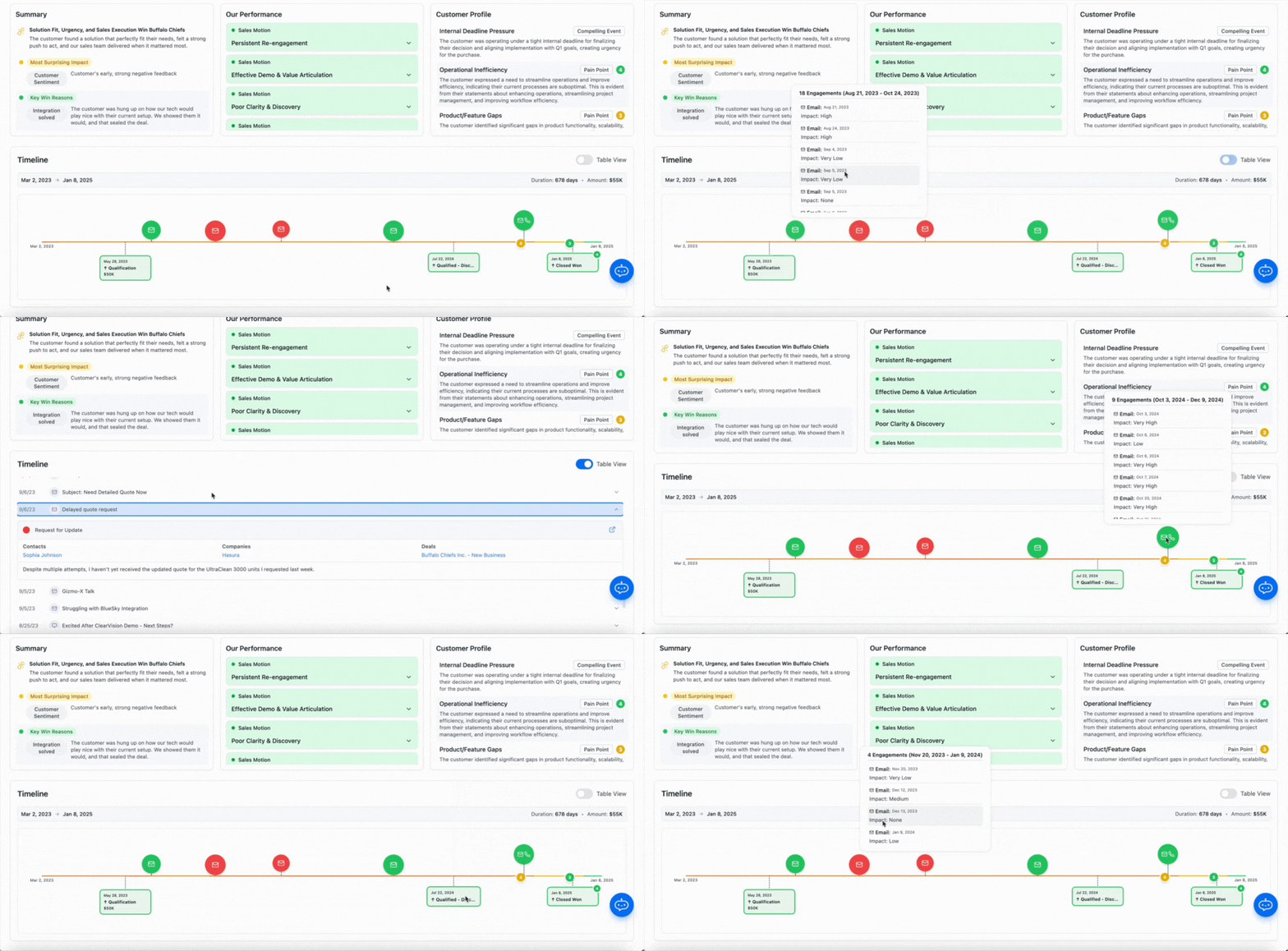
Other updates: Improved onboarding experience for new users, performance improvements, and fixed some quirky behavior with the filters.
Win Loss Review: Now available for Data Parrot Pro users, Win Loss Review shows 1-2 sentences on why you won or lost a deal. Filter by Date Range, Pipelines, Deal Owners, and Teams. Supports export to CSV. Read More about Win Loss Review↗
Win Loss Review Plus: The first Data Parrot add-on, Win Loss Review Plus goes deep on the fundamental reasons why you win or lose deals. It covers ranked Win/Loss Reasons, Contact Roles and Influencers, Improvement Opportunities, Key Learnings, and Property Impact. For each deal, you can view a Sales Cycle Timeline showing deal health over time, stage changes, amount changes, and engagement timeline. The daily and weekly notification emails will be updated to include Won and Lost Deals. Win Loss Review Plus is $50/month and requires an annual Data Parrot Pro subscription with no additional per user fee. Learn more about Win Loss Review Plus↗
Other updates: The Engagement Insights section has been moved to a tab in the Activity Dashboard. The Billing section has been improved to be more informative and easier to use.
Ask Polly: Meet Polly, the Data Parrot AI Chatbot. Available in Playground for Pro customers who have opted in, she can answer questions about engagements related to your Open, Won, and Lost Deals. Example questions: "What deals did we lose because we didn't have integration with ___?", "What deals did we lose that were RFPs?", "What open deals require SOC2 Compliance?" Ask Polly a Question↗
Pipeline Time Machine: Pipeline Trends has been overhauled so much it's now called Pipeline Time Machine. It shows what grew your pipeline, what shrank it, open deal movement, and more. Filter by any dates, pipelines/stages, deal owners, teams, and compare previous years. The Week in Review email has been updated to match. Check out Pipeline Time Machine↗
New Help Site: The help site has expanded with content including What is Data Parrot?, Quick Start, and Release Notes. Each page in the app now has a help button that takes you to the relevant help page. Go to Docs↗
Other updates: You can now filter by Team in the Activity Dashboard, Deal Pulse Mode supports empty Close Date values, and many other small fixes and quality of life improvements. Go to Deal Pulse Mode↗
Won Deal Analysis: Now available in Playground for Pro customers with up to 10 recently won deals. Review reasons for winning, deal factors and user influencers, key turning points in the sales cycle, learnings to win future deals, and review of key deal signals. See Won Deal Analysis ↗
Team Activity Dashboard: The Team Activity Dashboard has graduated from Playground and is now available in the main app. View a summary of meetings booked, held, rescheduled, calls, and emails for your sales team with filters for date range, pipeline, deal owners, and more. View Team Activity ↗
Home currency support: Data Parrot now supports Amount in Home Currency across the entire app -- Pipeline Trends, AI Forecast, and everywhere else. All amounts now include currency symbols. Go to Data Parrot ↗
Custom property usage: Custom property analysis now includes usage data showing how and when properties are used, expanding on the existing classification that assigns a category, writes an AI description, and provides feedback. Useful graphs show the distribution of your custom properties, and you can export the custom property metadata from the table. View Your Custom Property Analysis ↗
Visualize amounts by date range: When filtering by Close Date in Deal Pulse Mode, you can now see the total amounts in a bar chart. Go to Deal Pulse Mode ↗
Filter by Deal Owner in Research Trends: You can now filter by Deal Owner in Research Trends in addition to Pipeline and Date Range.
View last sync: See when Data Parrot last pushed AI properties to HubSpot.
Research Trends: A new way to analyze your sales data, originally introduced in 2024 Wrapped and now available anytime for any pipeline. Pick a date range and pipeline, and let AI uncover positive trends (what's working), negative trends (where the blockers are), and customer feedback (key product and service requests). Soon you'll be able to customize the research to focus on what matters most. Go to Research Trends↗
Custom property analysis: The AI now automatically classifies your custom HubSpot properties, giving you instant insights including AI Description, AI Category, AI Feedback, and Deal Pattern Analysis. This is an early release -- next up is property usage analysis, formula detection, and customer journey stage insights. View Your Custom Property Analysis↗
Deal Pulse Mode filtering: You can now filter by Close Date and Amount Range in Deal Pulse Mode. Deal Pulse Mode is a gamified tool designed to speed up Deal Review meetings, so you spend less time digging through data and more time strategizing to win deals. Go to Deal Pulse Mode↗
Filtering by team: Team filtering is now available everywhere in the app including the Team Activity Dashboard in Playground and for Deal Pulse Mode. You can save team filters to presets, and filter by Team and Deal Owner at the same time for maximum flexibility. Filter your AI Forecast ↗
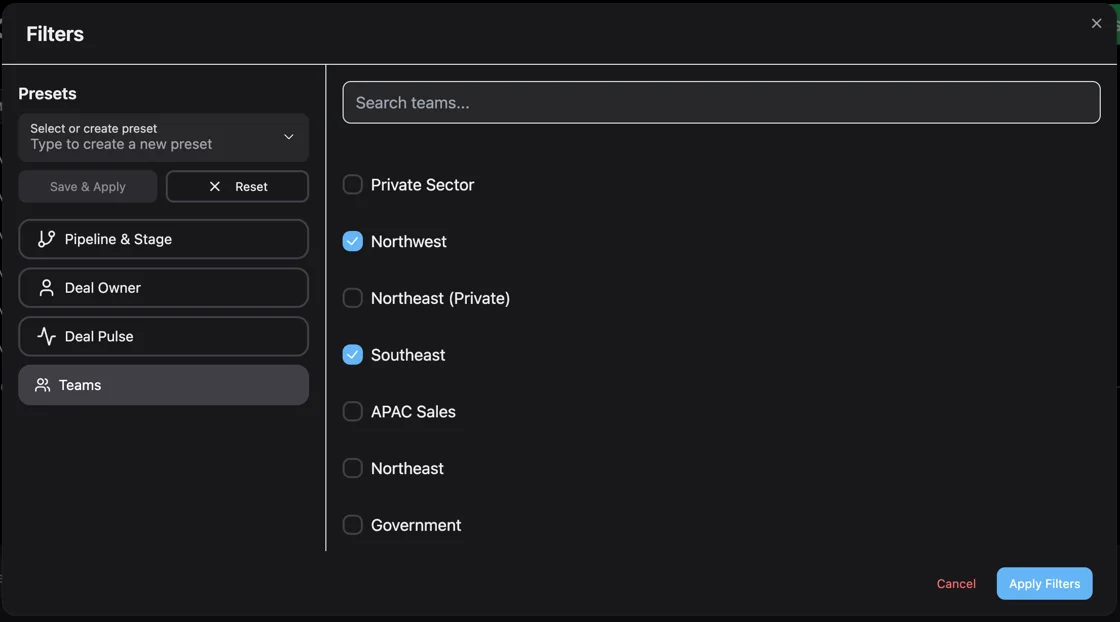
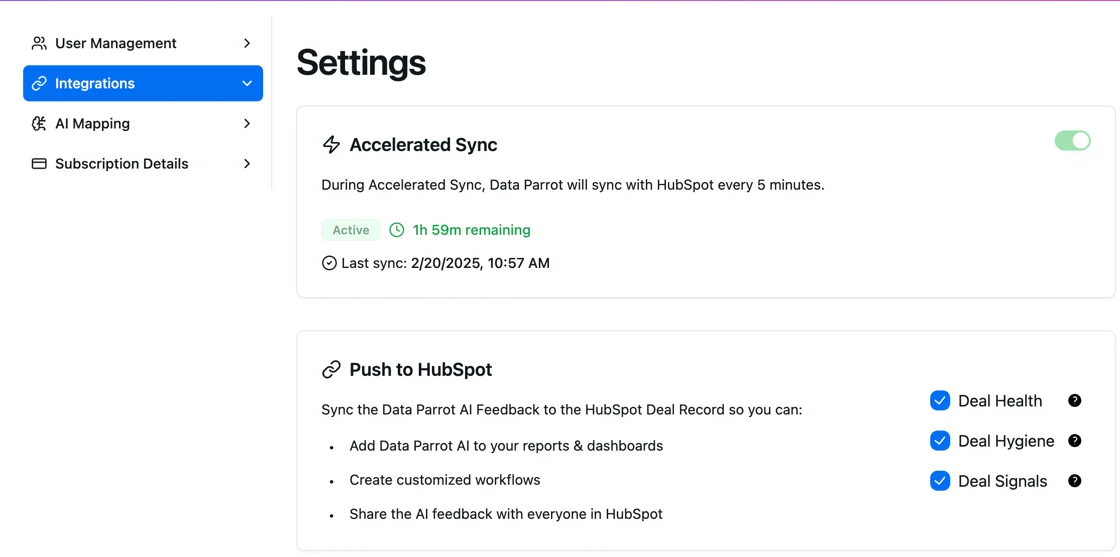
Accelerated HubSpot sync: In Settings you can now activate accelerated sync, which increases the sync frequency to every 15 minutes for 2 hours. The default is hourly. You can also see the last time the HubSpot sync was completed. Deal Pulse Mode automatically activates accelerated sync. Turn on Accelerated Sync ↗
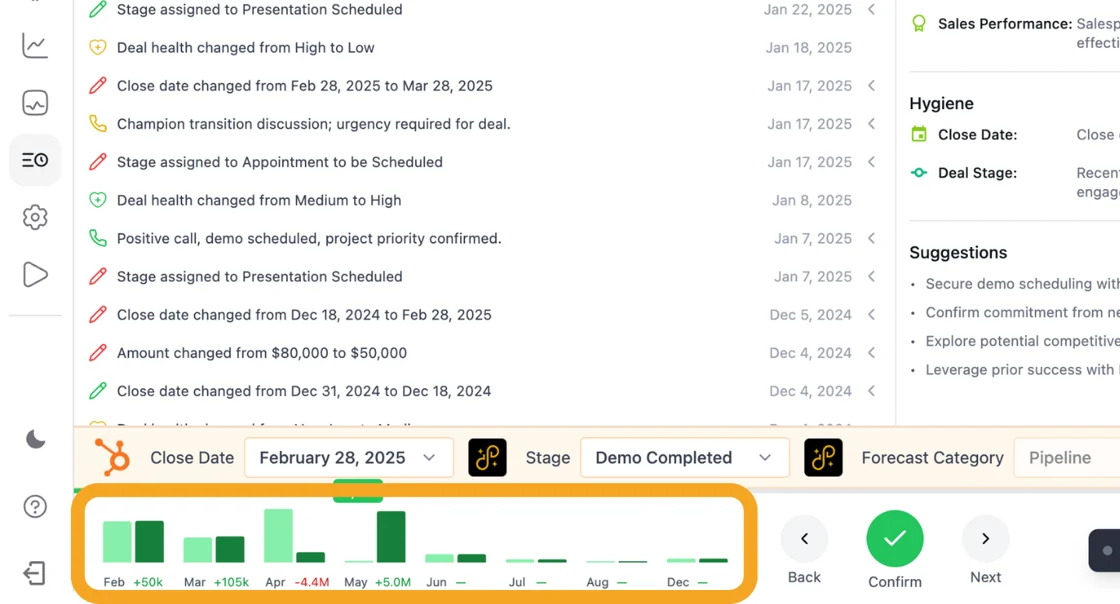
Deal Pulse Mode chart: As you go through Deal Pulse Mode and update your deals, you see a live update for your Forecast. The light green bar is the original state, and the dark green bar is the updated state. Note: changes made directly in HubSpot during Deal Pulse Mode will not currently be reflected -- only changes made in Deal Pulse Mode and confirmed will display. Go to Deal Pulse ↗
Team Activity Dashboard updates: The Team Activity Dashboard now automatically loads your preferred Pipeline and Deal Owner default settings. Also new: total time spent in calls and meetings, giving deeper insight into team activities. The Team Activity Dashboard is available for early access in the Data Parrot Playground. Team Activity Dashboard↗
AI Forecast filter update: New timeframe options include This Month, 3 Months Out, 6 Months Out, and Custom Date Range. This aligns with Pipeline Trends and makes it easier to dig into your Forecast. A few small UI issues at various resolutions have also been fixed. Go to AI Forecast↗
Team Activity Dashboard: Now available via the Data Parrot Playground (early access), the Team Activity Dashboard shows a summary of meetings booked, held, rescheduled, calls, and emails for your sales team with filters. This was a popular request because identifying reschedules is very difficult in HubSpot. Team Activity Dashboard↗
Deal Pulse Mode AI feedback filter: The filter for Deal Pulse Mode now supports filtering by AI Feedback including Deal Health, Forecast Category, Deal Status, and more. Focus your deal review meetings on the deals that need the most attention. Go to Deal Pulse↗
AI Forecast total amounts: The AI Forecast now displays the total amount by month above the bars. Go to AI Forecast↗
Notification email AI summaries: The daily and weekly notification emails now have dynamic subjects and AI-powered summarization of the most important deal updates. Support for team activity, leads, and all engagements is coming soon.
Jan 14, 2025
Pipeline Trends update: The Pipeline Trends section has been updated to move the Date Range, Group By, Previous Years comparison, and Filters above the chart. This should be more intuitive and help you dig into your pipeline growth over time. Go to Pipeline Trends↗
Data Parrot Wrapped: Your 2024 in review reveals your Pipeline Hero, key positive and negative trends that drive deal outcomes, top customer requests for your company, the difference between your won and lost deals, and your top performers in emails, calls, and meetings. Go to Data Parrot Wrapped↗
Dec 12, 2024
Deal Pulse Mode: Deal Pulse Mode helps you run fast and efficient deal review meetings. It includes a glanceable timeline of engagements and property changes, Data Parrot AI feedback and suggestions, and one-click updates to HubSpot for Close Date, Amount, and Stage -- all with no scrolling. Go to Deal Pulse↗
Nov 14, 2024
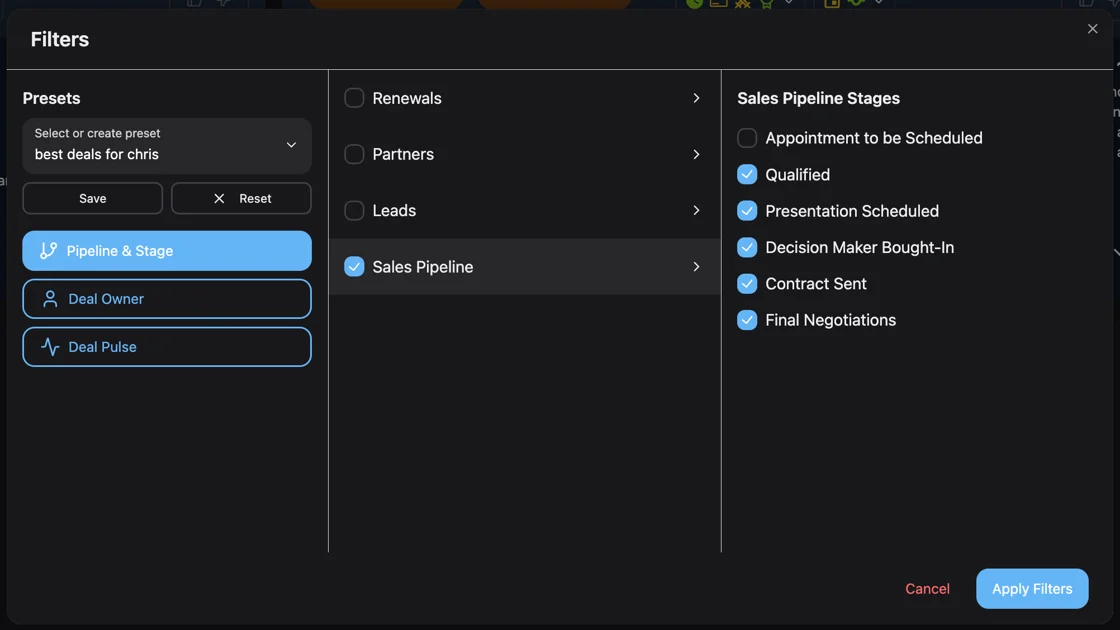
Filtering by deal stage: Deal stage filtering is back, now combined into a single unified filter UI where you can manage everything in one place. You can save presets for different filtering scenarios to save time. Filter your Deals ↗
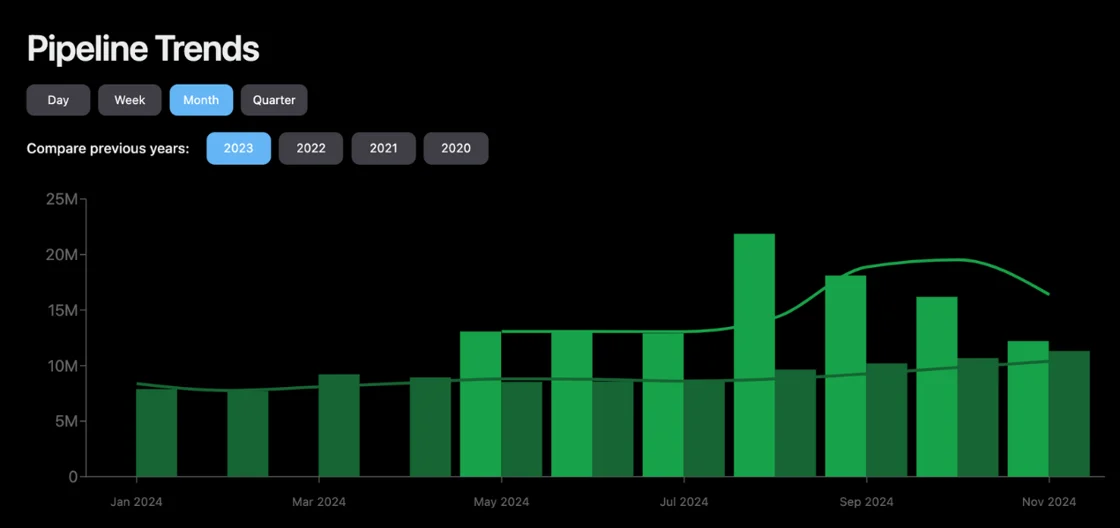
Overlay previous years in Pipeline Trends: By popular request, you can now overlay previous years in Pipeline Trends. Click the year you want to compare and it will display, respecting your filters by create date, deal owner, and pipelines. Compare your Pipeline ↗
Sep 26, 2024
Deal filtering: Filtering is now available in both Deal Pulse and AI Forecast. You can filter by Deal Health, Forecast Category, Deal Status, Purchase Intent, and Close Date, and save filters as presets for easy access.
Expanded notifications: The notification emails now include calls and meetings in addition to emails, key property changes showing deals where close date or amount was changed, and smarter stuck deal detection where the AI verifies that flagged deals are in fact still stuck.
Homepage News Feed: The home page now shows a timeline of key events related to your deals including new Deal AI Analysis, new engagements associated to deals, and key property changes (Amount, Pipeline/Stage, Close Date). You can expand any line in the newsfeed to see the Deal Card, and filter by the three categories.
Deal Pulse (replaces Deal Progress): Deal Pulse adds significantly more information with AI-assessed Deal Quality including Deal Health, Forecast Category (Committed, Upside, etc.), Deal Status (Active, Stuck, Dormant), Competitive Position, and Sales Performance. It also includes Deal Hygiene with Close Date confidence ratings and improved deal stage analysis with recommended stages. All data is exportable and will be added to AI Forecast.
Calls and meetings: Calls and Meetings are now supported in the renamed "Engagement Insights" section, in addition to Emails. For now, the analysis relies on the content of those engagements inside HubSpot, with Zoom integration coming soon.
Improved AI: The AI now intelligently adapts to the pipeline and stage of each deal, recognizing whether it is pre-sales, new business, expansion, or renewal. The tone is also much more direct -- instead of "The lack of engagement indicates difficulty in assessing the purchase intent" it will say "No activity. Unlikely it's even a deal."
Aug 8, 2024
AI Forecast update: The AI Forecast now includes a Deals by Close Date chart. You can filter by Purchase Intent by clicking the green/yellow/red boxes, select "Show Active Deals" to remove stuck or dormant deals, and select "Show Purchase Intent" to convert the chart to a stacked bar chart showing the amount breakdown by purchase intent.
Export is back: You can once again export your data from any view in Data Parrot.
Deal Progress update: The Deal Progress section has been overhauled with filtering, scannable cards, and expandable details. Click the category boxes at the top to filter, scan AI feedback without scrolling, expand cards for additional analysis, and use the orange + button to create tasks in HubSpot.
Improved Settings: The Settings page now has a new table layout making it easy to see which users have which filters and notifications. Push to HubSpot is more clearly labeled, and Integrations has its own section. Saving Deal Owner/Pipeline filters to your profile now automatically updates your Email Notifications as well. For more on these settings, see the docs settings overview.
AI-generated pipeline mappings: You can now view the AI-generated pipeline mappings for your company. This is a work in progress and will be expanded over time.
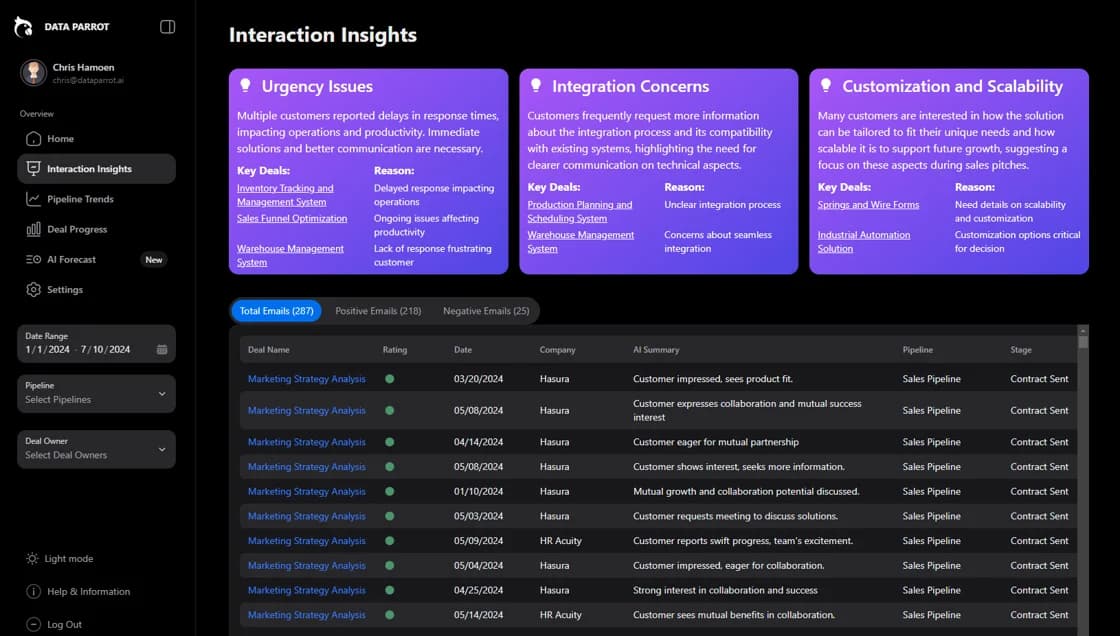
New interface: The new Data Parrot interface is now live. The overall flow of the app includes Home with a summary of all sections, Interaction Insights with AI analysis for emails on open deals plus AI-summarized Key Trends, Deal Progress showing which deals are progressing, stuck, or dormant, AI Forecast categorizing open deals by purchase intent level, and Settings for managing users, Slack, custom HubSpot properties, and notifications.
Pipeline Trends: See exactly what changed in your pipeline with a dedicated trends view.
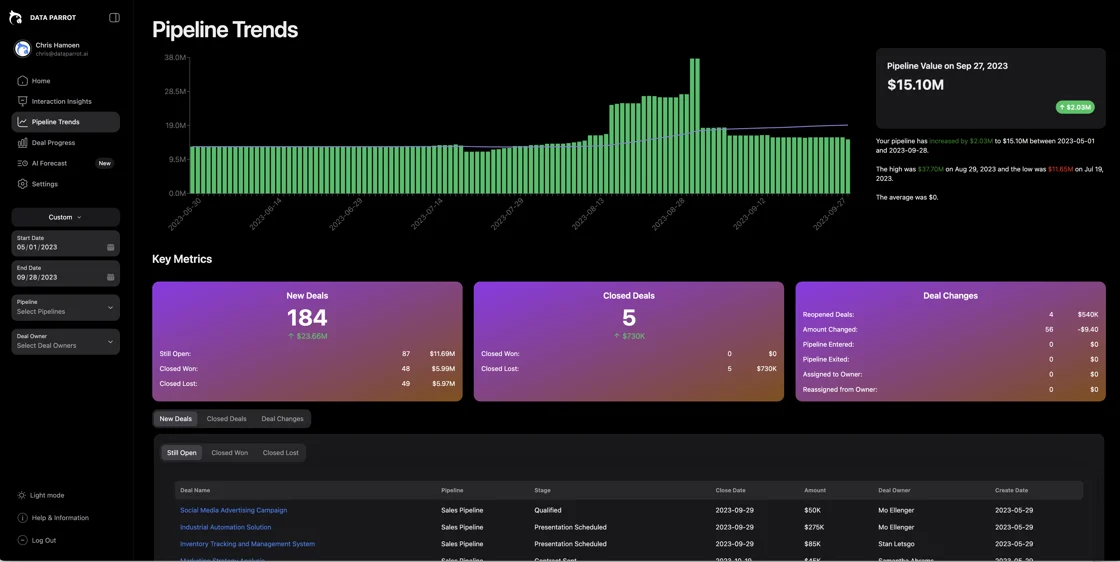
Light mode and dark mode: Both light and dark mode are available across the app.
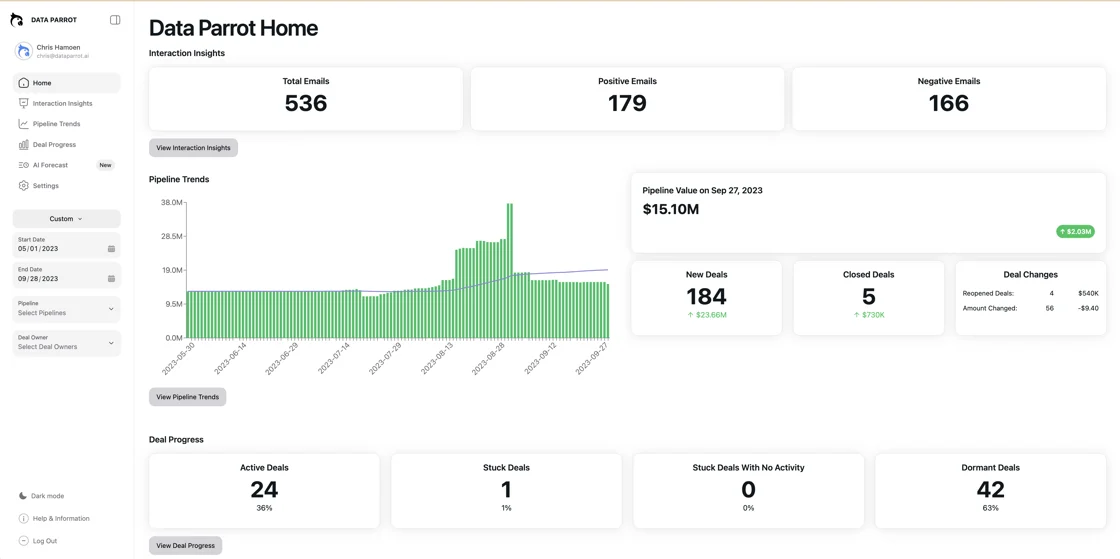
Interaction Insights with Key Trends: The Interaction Insights section includes Key Trends analysis across all your emails.